
Java, Minecraft, and class-file version chart
Use this chart to map class-file format to Java. Minecraft requirements vary by release; check the server and build tool separately.
Java class-file major versions
The major version in a .class file identifies the bytecode format produced by a compiler. If an older runtime or tool reads a newer format, it may report an unsupported version. Common mappings:
| Java release | Major version | Note |
|---|---|---|
| Java 8 | 52 | Common in older Minecraft projects |
| Java 11 | 55 | LTS release |
| Java 17 | 61 | Required by many relatively recent Minecraft releases |
| Java 21 | 65 | Required for Minecraft 1.20.5 and newer server software |
| Java 22 | 66 | Non-LTS Java release |
| Java 23 | 67 | Non-LTS Java release |
| Java 24 | 68 | Non-LTS Java release |
| Java 25 | 69 | LTS release |
Major versions advance with Java releases after Java 8, but a project may support several runtimes. The chart maps a class format to the Java release that introduced it; it does not say every game or plugin needs the newest Java. Major 65 means Java 21 bytecode, not Minecraft 1.21.
Minecraft releases and runtime requirements
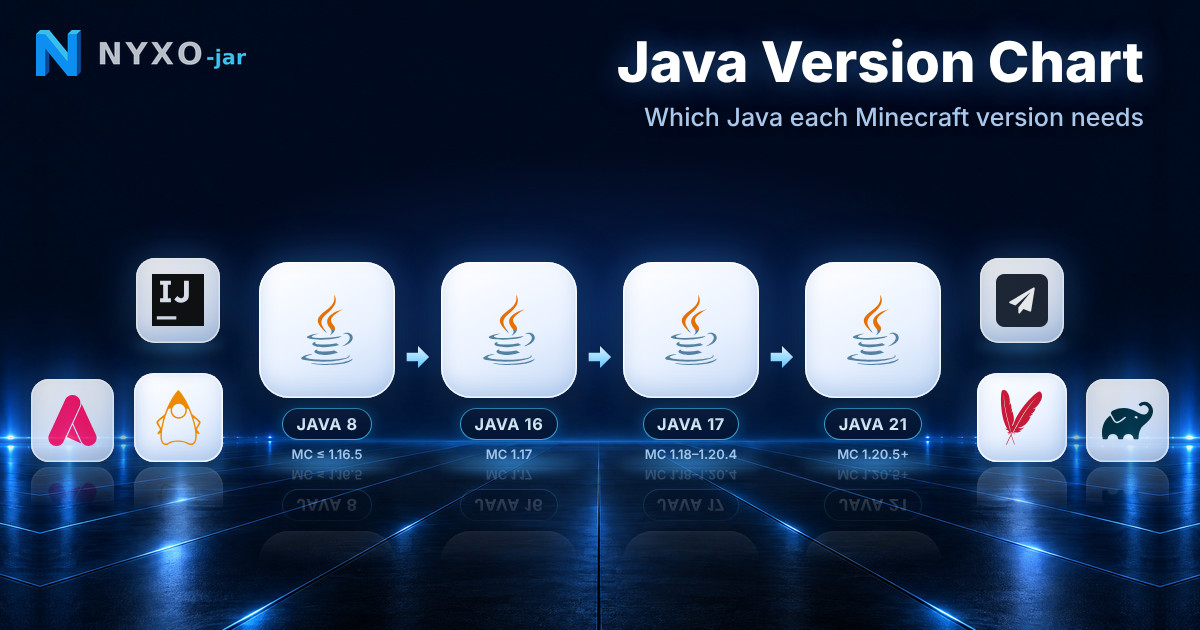
Java requirements depend on the Minecraft version and platform. As a general guide, Minecraft 1.18 through 1.20.4 use Java 17, while Minecraft 1.20.5 and newer require Java 21 to run official server software. Older releases such as 1.16 and 1.17 have different requirements and may use Java 8 or Java 16 depending on the release. Check the documentation for the exact server software; Paper, Forge, or a custom environment can add tool or runtime constraints.
Separate Java at build time from Java at runtime. A compiler may create Java 21 bytecode while a hosting panel runs the server on Java 17. Gradle itself may require a newer JDK to run even when the project targets older bytecode. Record three versions: the JVM that starts Gradle or Maven, the toolchain that compiles the code, and the runtime that launches Minecraft.
Read the error message in context
Unsupported class file major version 65 means the program reading the file does not support Java 21's format. If it appears during server startup, the runtime may be older than the bytecode. If it occurs during Gradle configuration, Gradle or a bytecode-analysis plugin may be old. The detailed troubleshooting page explains the distinction. Do not lower the target to 17 until you know the source and dependencies can run there.
invalid source release: 21 is a related but different mismatch: the project requests source level 21 but the active compiler is too old to recognize it. Check the JDK inside the build process and Maven or Gradle settings. This message does not prove the server needs Java 21; the target may simply be higher than necessary. See the source release guide.
Choose a compatible target
Choose the oldest Java supported by the target Minecraft release and platform, provided the source and every dependency can use it. If the source uses Java 21 syntax or APIs, changing a POM number will not turn that code into Java 17. A dependency compiled for newer bytecode can also prevent an older JDK from loading it even when your own project targets an older level.
For Maven, inspect maven.compiler.release and the compiler plugin. For Gradle, check the Java toolchain and options.release. Keep one consistent value and avoid mixing old source and target settings in a parent file. See the Maven and Gradle guides for configuration details.
Inspect the JAR output
With a local JDK, javap -verbose can show the major version of a particular class. Check more than one class when the project uses dependencies; different libraries may have been compiled with different releases. An archive viewer shows JAR entries but is not enough to inspect all bytecode. The build log also identifies the JDK used, so keep it with the artifact when diagnosing a problem.
Do not confuse class-file compatibility with API compatibility. Java 21 can read a Java 17 class, but a plugin that calls a Paper API missing from the server can still fail for another reason. Unsupported API version concerns the plugin descriptor or API level; see the API guide. NoClassDefFoundError usually concerns a missing class or dependency rather than the major number alone.
Pre-release checklist
- Identify the Minecraft version and platform that will run the artifact.
- Confirm that release's Java requirement from the platform source.
- Check runtime, toolchain, and compiler target separately.
- Build cleanly and test on a matching staging server.
If you upload the project to NYXO JAR, read the environment summary instead of assuming it uses the Java installed on your computer. Keep the complete error and the name of the program that printed it. For broader problems involving ZIP contents or dependencies, use the troubleshooting guide or the project build guide.
Source, target, and runtime are different
The source setting controls which language syntax the compiler accepts, while target or release controls the bytecode format and available standard APIs. Runtime is the Java version that executes the output. Some projects use --release because it constrains class format and standard APIs together, but it does not set the Java version for a Minecraft server. Check each stage instead of treating “Java 21” as one setting everywhere.
If you intend to support multiple Java releases, test each runtime with the exact dependencies you will distribute. A JAR may contain class files compiled at different levels. Checking only the main class is not enough. Keep a support matrix listing Minecraft, Paper or Forge, and Java, then update it when you change a dependency or compiler release.
Verify the Minecraft release instead of guessing
Check the documentation for the server release you plan to run, not a different game version. Paper, Forge, and Fabric may publish runtime instructions for each release. In a network, the proxy, servers, and build tool can each use a different Java runtime. Record the Java path for every launch command and verify it in that process's startup log.
If Minecraft or the loader changes, check the Java requirement again before changing the plugin target. A newer Java is not always suitable if build tools or plugins are old, and an older Java may not run the server at all. Test the full environment: build tool, artifact, and server. When asking for help, list all three versions instead of saying “my Java is recent.”